SPECIAL THANKS TO CONTRIBUTOR : Mr. Edoardo Montagnoli [Italy]
The project is on GitHub: https://edwardmountain.github.io/AirFlash. The license is MIT, so feel free to host it.
At this link the files you asked me so you can easily download it:
https://drive.google.com/drive/folders/1vfsXtdRB0dDbYD2ItJdzStRhN9_7CVo2?usp=share_link
---------------------------------------------------------------------
AirFlash
Update the firmware of Bluetooth devices from your computer. No Android phone, no installation.
AirFlash is a single web page that flashes firmware over Bluetooth Low Energy to devices built on Telink chips, the ones whose manufacturer tells you to use the Android app OTA_Telink. It speaks the same protocol as that app, directly from Chrome or Edge on Windows, macOS, Linux and Android.
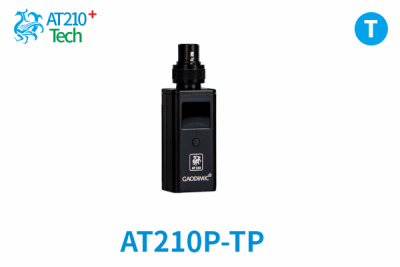
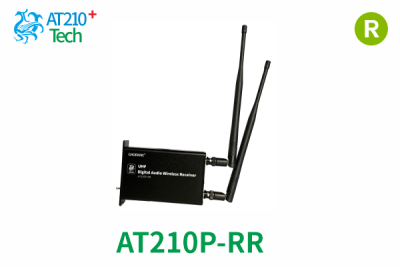
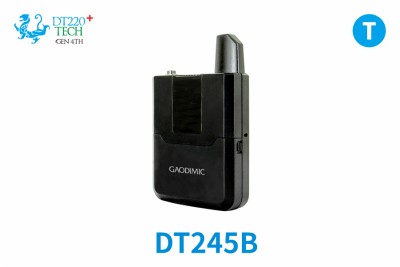
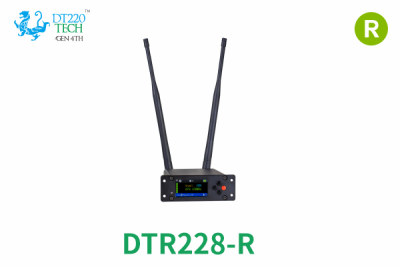
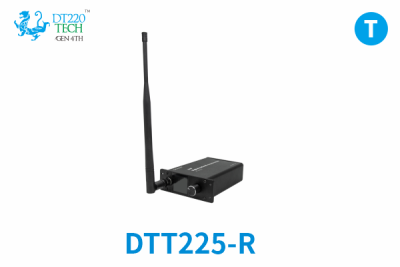
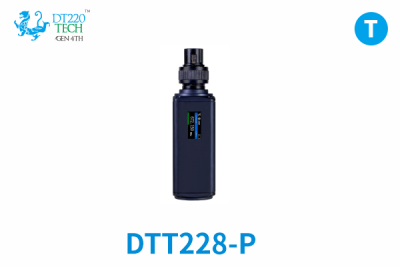
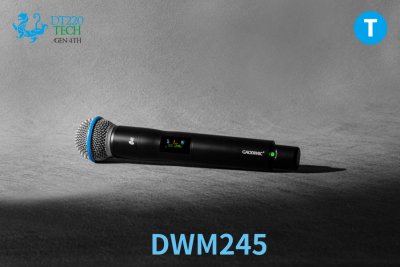
It was born out of a practical problem: a GAODIMIC AT210 / DT228 / DWM240 wireless microphone system whose firmware could only be updated from an Android phone, and an owner who has a Mac. It has been tested on the DT228 transmitter and rack receiver, and should work with any device that uses the Telink BLE OTA service.
> **Warning.** Writing the wrong firmware, or cutting the power during an update, can leave a device unable to start. Use only firmware files provided by the manufacturer for your exact model and hardware revision. You use this tool at your own risk (see [LICENSE](LICENSE)).
-----------
Full manual, technical description of the protocol and test report: AirFlash-Documentation.html (English / 中文).
Requirements
| Browser | Chrome or Edge. Nothing else: Safari and Firefox have no Web Bluetooth. |
| Computer | Windows 10/11, macOS, Linux, or an Android phone/tablet. iPhone and iPad are not supported (no browser on iOS has Web Bluetooth). |
| Bluetooth | A Bluetooth 4.0+ adapter. Every laptop made in the last decade has one. |
| Firmware | The `.bin` file from the manufacturer. |
Nothing to install. The page has no dependencies and makes no network requests; it works offline.
Getting the page
Two ways, pick one:
- Open it online from the project page (needs an https address; GitHub Pages is fine).
- Download `AirFlash.html` and double-click it. It opens in your default browser; if that is not Chrome or Edge, right-click → Open with.
Do not open it from a plain `http://` address or inside another page's frame: the browser blocks Bluetooth there, and AirFlash tells you so.
Updating a device, step by step
The page is organised in the order you do things: firmware on the left, devices on the right, log at the bottom. Each device card shows four steps, highlights the current one, and explains it.
1. Load the firmware
Drag the `.bin` file onto the box on the left, or click the box to choose it. You can load several files at once (for example transmitter and receiver).
Each file is checked before anything is sent:
- it must be a Telink firmware (the `KNLT` signature at the start),
- the size written in its header must match the file,
- its CRC32 must be correct.
A file that fails any of these is listed in red and cannot be flashed. Under the file name you see the version string and the device names embedded in it, which AirFlash uses in step 3.
2. Put the device in update mode and connect
Every device has a key combination to enter update (OTA) mode; it is in the manufacturer's instructions. With the GAODIMIC preset enabled (see below) AirFlash shows the combination for the DT228 directly in the card:
- Transmitter: hold MENU while powering on.
- Rack receiver: hold Left while powering on.
Press Connect. The browser opens its own device picker; select your device and confirm. Connection takes a couple of seconds; the card then shows connected and the device's Bluetooth name.
If the device does not appear in the picker, enable Show all Bluetooth devices in Settings and try again.
The first time, the browser asks permission to use Bluetooth. On macOS the system also asks once whether the browser may use Bluetooth: say yes.
3. Flash
AirFlash picks the firmware whose embedded device name matches the connected device; you can change it in the drop-down. If the names do not match, a warning appears and the Flash button stays disabled, because this is exactly how a receiver firmware ends up on a transmitter. If you are sure, disable Check firmware matches device in Settings.
Press Flash, confirm, and wait. The progress bar shows packets sent and elapsed time. A typical update takes 30 to 90 seconds. Do not touch the device and do not close the page.
Optional: Check sends the version request and reports what the device answers, without writing anything. Useful the first time with an unknown device.
4. Done
When all data has been sent, AirFlash sends the end command and the device switches itself off or reboots. That is normal: it is the device checking the received image and starting the new firmware.
The card shows the result:
- confirmed: the device reported success (newer firmware only).
- sent: everything was sent but this device does not report results (classic protocol, including the DT228). Switch it on normally and check the version in its menu.
- failed / stopped: nothing was changed on the device. See Troubleshooting.
The card is then clean again, ready for the next device.
---
Updating several devices at once
Press + Add device to add a card. Each card is an independent flow with its own connection, its own firmware choice and its own progress. Connect each device, then either press Flash on each card or Flash all ready to confirm them all at once.
Devices do not interfere with each other: each Bluetooth connection is a separate, private link. The only effect of updating in parallel is that each transfer is a little slower, because the computer alternates between connections. With many devices (five or more) do them in smaller groups, because the device firmware has a time limit for the whole update.
---
Settings
| Setting | What it does | Default |
| GAODIMIC preset | Applies the settings below for GAODIMIC systems and shows the DT228 key combinations in the cards. Everything stays editable. | off |
| Device name starts with | Filters the browser's device picker by name prefix. | empty (GAODIMIC with preset) |
| Show all Bluetooth devices | Lists every nearby device in the picker, not only those announcing the OTA service. | off |
| Check firmware matches device | Blocks flashing when the device name is not found inside the firmware. | on |
| Sync read every N packets | A read request every N packets, used as flow control. This is the "speed" slider of the official app. | 8 |
| Pause between packets (ms) | Extra delay per packet. Keep at 0: the device firmware limits the total update time, and a slow transfer is rejected at the end. | 0 |
| Write with acknowledgement | Uses acknowledged writes where the device supports them. Slower; most devices do not support it. | off |
Language, preset and the numeric settings are remembered in the browser.
---
Troubleshooting
- The page says Bluetooth is not available.
You are not in Chrome or Edge, or the page was opened from `http://`, or inside a frame. Open `AirFlash.html` directly, or the https address in its own tab.
- The device is not in the picker.
Check that it is actually in update mode (the key combination must be held while powering on). Enable Show all Bluetooth devices. Move closer. On macOS, make sure the browser has Bluetooth permission in System Settings → Privacy & Security → Bluetooth.
- The device rebooted after the update, but the version did not change.
The device rejected the image at its final check. The most common cause is a transfer that took too long: set Pause between packets to 0 and Sync read to 8 or higher. Otherwise the file is for a different hardware revision; ask the manufacturer.
- The update stopped half-way.
Put the device back in update mode and run it again. Nothing has been changed on the device: the new firmware is only activated when the complete, verified image has arrived.
- The device shows a different Bluetooth name than before.
Some firmware carries two names (an advertising name and an internal one). After the first connection, macOS caches the internal one and shows it from then on.
The device is unchanged; AirFlash recognises both names.
- It says "no OTA service".
The device is not in update mode, or it is not a Telink-based device. AirFlash cannot update it.
---
How it works
AirFlash implements the Telink BLE OTA protocol as used by the manufacturer's Android app:
- service `00010203-0405-0607-0809-0a0b0c0d1912`, characteristic `…2b12`;
- commands `FF00` (prepare), `FF01` (start), `FF02` (end);
- data in 20-byte packets: 16-bit index, 16 bytes of firmware (padded with `0xFF`), CRC-16/MODBUS;
- a read every N packets as flow control;
- the end command carries the last index, its complement and a CRC; the device verifies the image and reboots.
The firmware is written to a spare area of the device's flash and activated only after the device's own final check, which is why an interrupted or rejected update leaves the previous firmware in place.
Everything runs in the browser through the Web Bluetooth API. The firmware file never leaves your computer.
Languages
English (default), Italiano, Deutsch, Français, Español, Português, Русский, 中文, 日本語, 한국어. Click a flag at the top; the choice is remembered.
License
MIT, with a clear no-liability statement for firmware damage: use it, copy it, modify it, host it, as long as the copyright notice stays. See LICENSE. AirFlash is an independent project, not affiliated with GAODIMIC, infoSVC or Telink.
by DoDo7